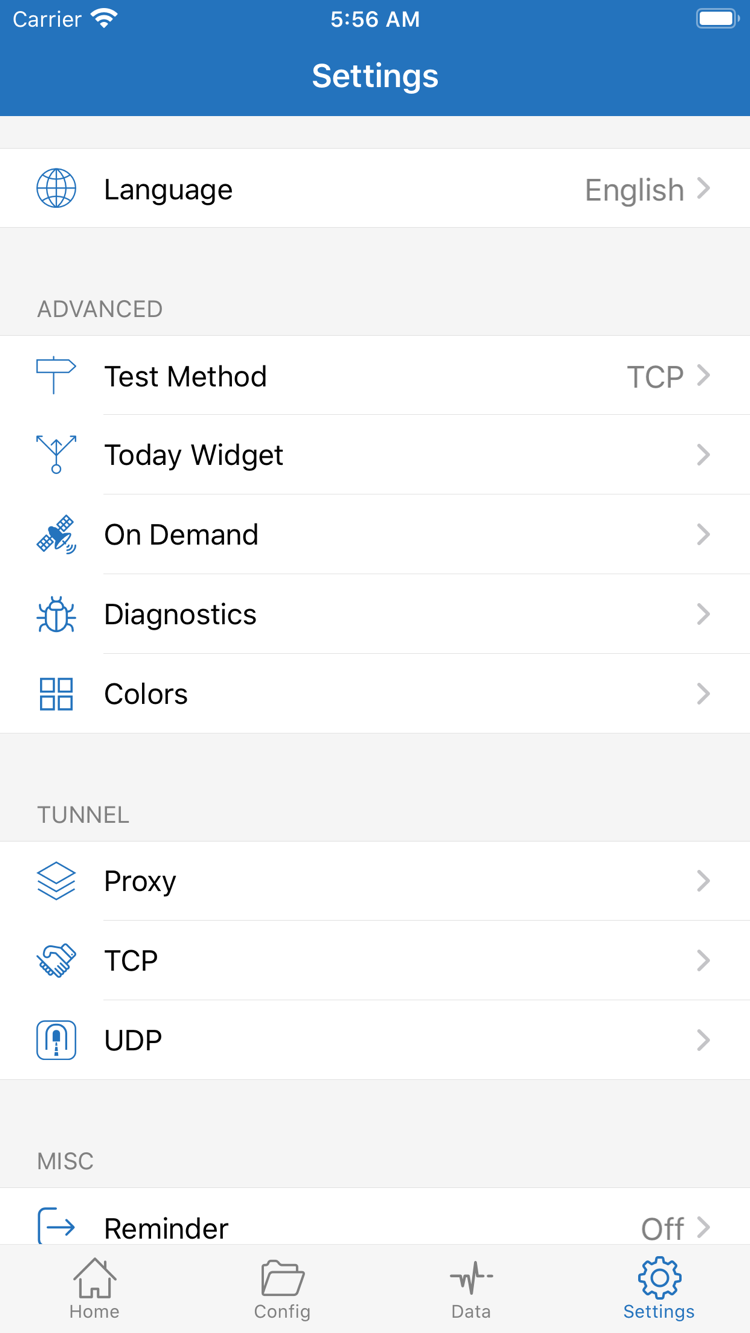
Add Server: Add a Server or Import a Subscription
First, check whether you have a subscription link or details for a single server. A subscription link typically provides a list of servers; individual server details must be entered into the corresponding fields. Choose one method—there's no need to import the same information twice. Keep the original details handy, and when copying, avoid including instructions, extra spaces, or line breaks.
Have a Subscription Link? Choose Subscribe
On Home, find Add Server, or use the add button to open it. Tap Type, choose Subscribe, then paste the full subscription link into the URL field for that type. A name or note is just for identification; choose something you can recognize. It doesn't replace the subscription link or affect whether the link works.
Check that the link is complete, then save and return to Home. Wait for the subscription to load. When successful, you should see a subscription group and its server entries, not just the group name. If the group is empty or loading fails, check the link, your network, and the provider's service status first. Don't change Global Routing yet: changing modes can't add server details that haven't been imported.
Have Details for One Server? Enter Them by Type
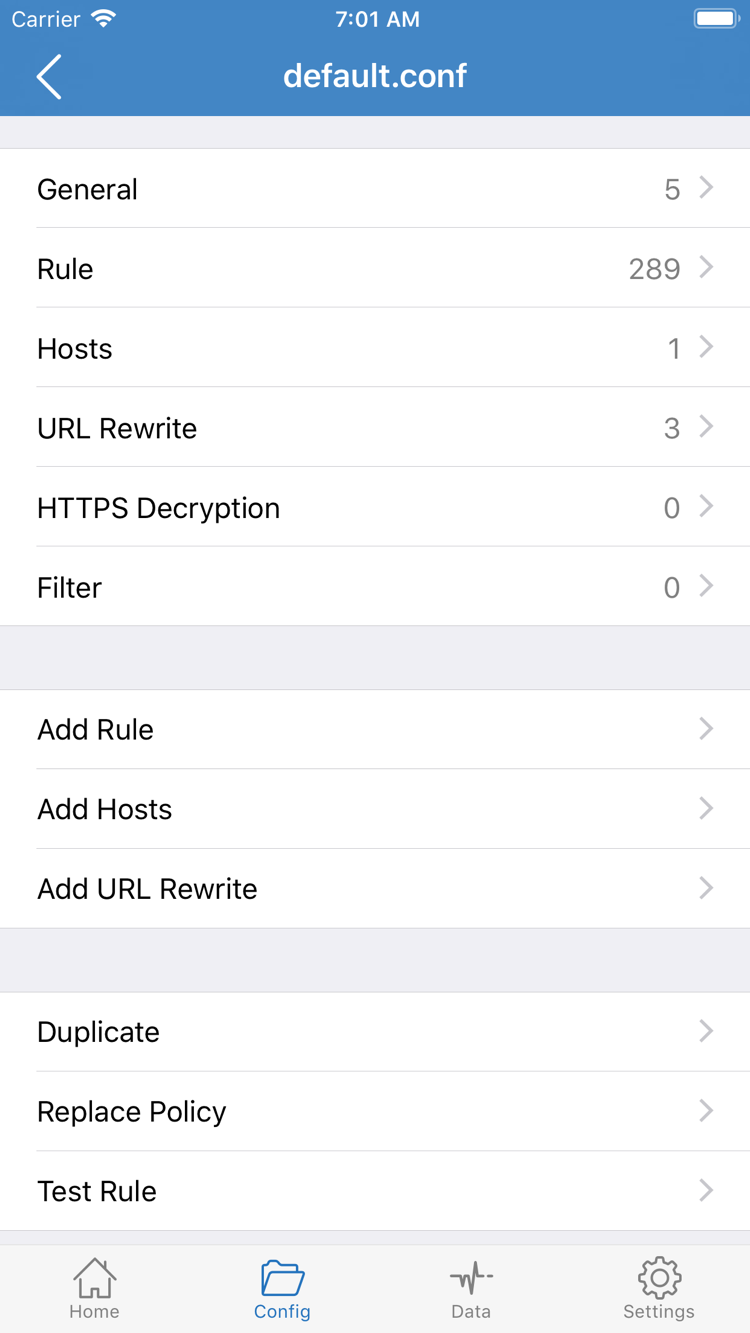
Open Add Server and choose the protocol type specified by your provider under Type. Enter the Host, Port, and required authentication details. The official screenshot shows the fields for one type, including Password and Method. Other types have different fields, so don't assume every protocol uses the same set of parameters.
Host is the server address, and Port is the port number. Match the password, encryption method, and other protocol parameters to the details you received. Don't enter a subscription URL in Host or replace an option just because another one looks more common. If you have a compatible QR code, use Scan QR Code; check the type and address before saving.
After saving, return to Home and confirm the new entry appears in the SERVER list. This only confirms that the details were added; it doesn't prove the server can connect. Select the server you want to test, then choose a routing mode. See the glossary for the difference between a subscription and a configuration file.
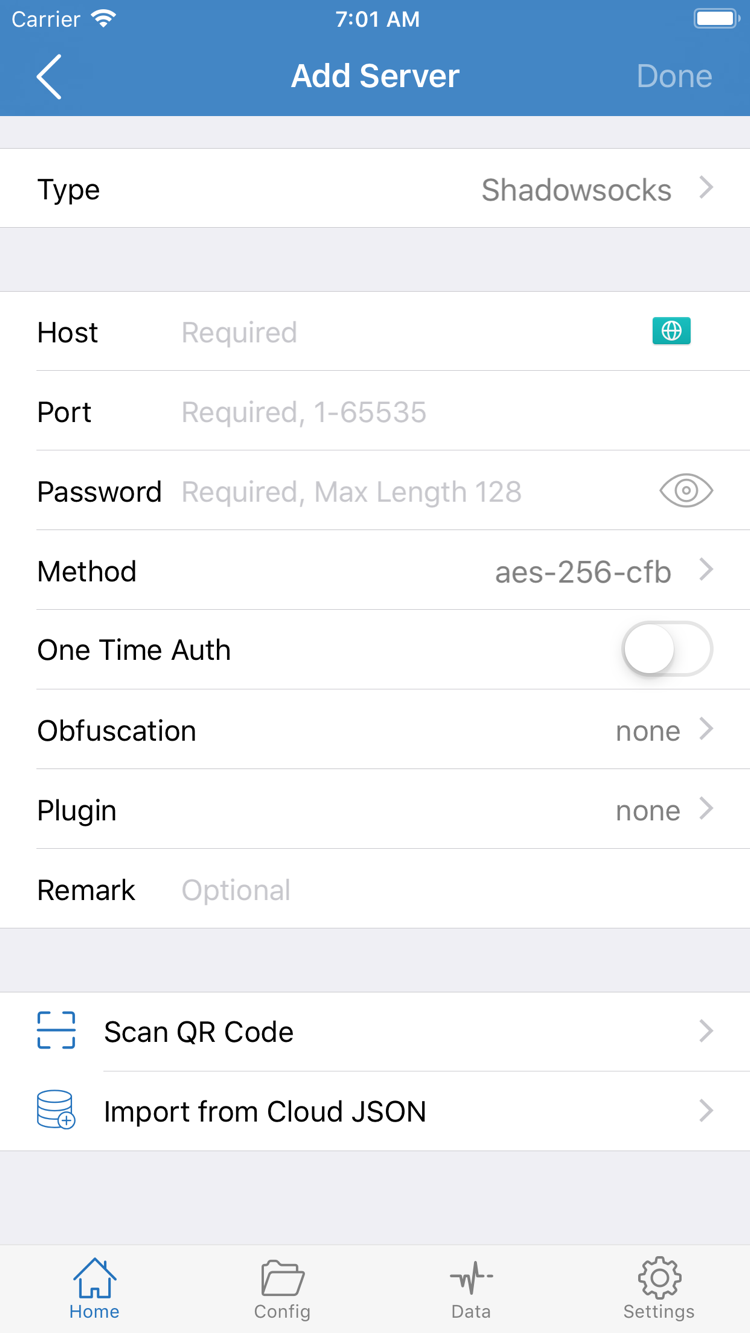
Global Routing: Choose Config, Proxy, or Direct
Global Routing controls how traffic is handled; it doesn't fill in server details. Return to Home and open Global Routing. This guide covers three modes—Config, Proxy, and Direct—to help you decide what to check. Before choosing, decide whether you're testing the server or rule-based routing.
Config: Apply the Active Configuration
With Config selected, traffic is handled according to the rules in the active configuration. Open Config and check which configuration file is active; seeing a file in the list isn't enough. Importing a subscription doesn't set up routing rules. A subscription provides server details, while a configuration file defines how traffic is matched and handled.
The configuration editor in the official screenshot includes sections such as General, Rule, Hosts, URL Rewrite, and HTTPS Decryption. To get started, focus on the destinations and policies in Rule; you don't need to change every section. Rules are generally matched in order, so an earlier match may determine the result. See the complete manual for rule syntax and configuration maintenance.
Proxy: Test the Selected Server
Choose Proxy to check the selected server's connection and access without making routing rules another variable. This can help with initial troubleshooting, but it doesn't guarantee access to every destination or make incorrect server details work. If Proxy works but Config doesn't behave as expected, check the configuration and rule matches instead of importing the same server again.
Direct: Test Without a Proxy Route
With Direct selected, traffic is handled without using the proxy. A webpage loading in this mode doesn't show that the selected proxy server is working. After the initial connection test, switch back to Config for everyday rule-based routing, confirm the active file, and test a specific destination.
DOMAIN-SUFFIX,example.com,PROXY
IP-CIDR,192.168.0.0/16,DIRECT
FINAL,DIRECT
These examples use reserved example domains to illustrate rule structure: PROXY and DIRECT are policy names, while FINAL handles traffic that didn't match an earlier rule. Don't replace your existing configuration with this example. First make sure the selected mode matches your goal, then select a server and connect.
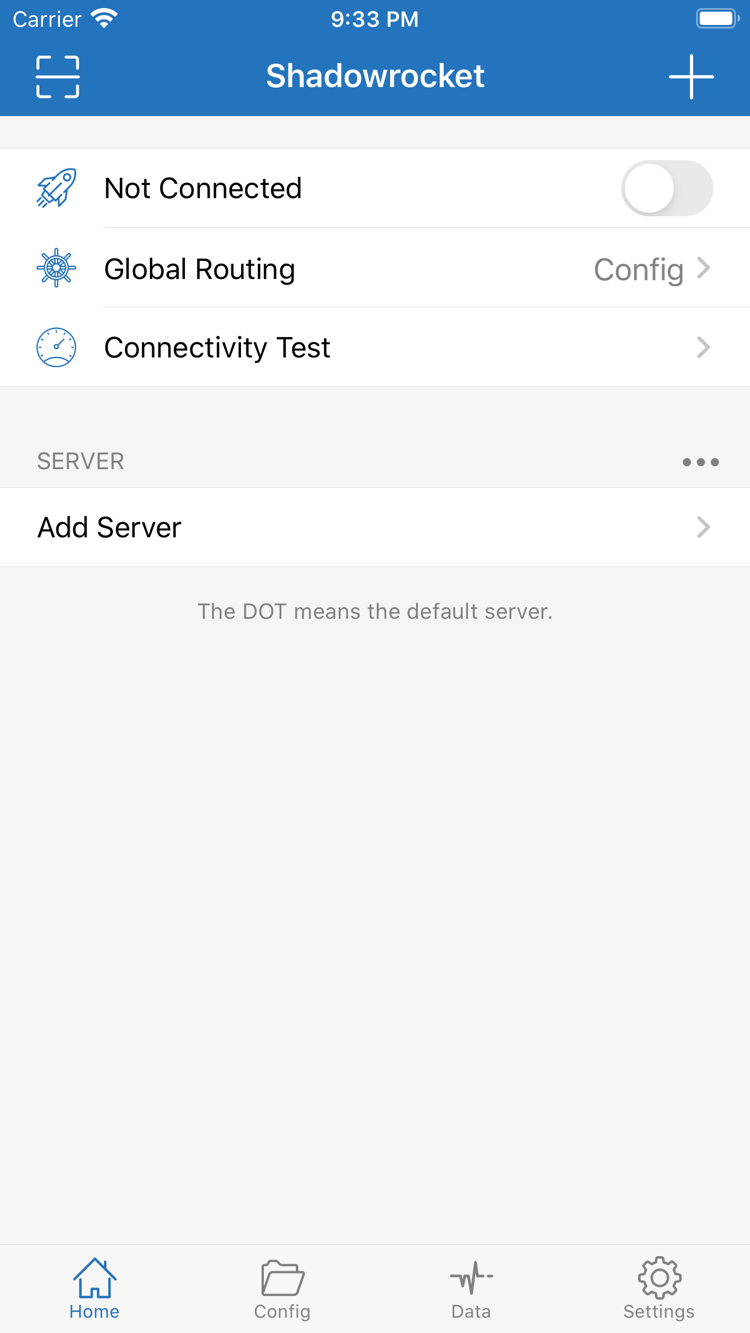
Home: Select a Server and Connect
Select a server before turning on the switch at the top. In the SERVER section on Home, tap the server you want to use and check for the selection dot on the left. Opening a server's edit screen is not the same as selecting it. If you open its settings, save or go back and confirm the selection dot is still shown in the list.
Make sure Global Routing matches the mode you chose in the previous step, then turn on the connection switch at the top. The first time you connect, the system may ask permission to add a VPN configuration. This authorization lets the app establish a system network connection. Read the prompt, confirm you're acting on behalf of Shadowrocket, then approve and complete device authentication as required.
If you deny system authorization, the connection won't be fully established. Return to the app, start the connection again, and respond to the system prompt rather than changing the server password. A managed device, system restrictions, or another active VPN configuration may also affect authorization or connection. Check which configurations your device allows.
After authorizing, return to Home. Check whether the status at the top changes from Not Connected to connected and whether the switch stays on. If it turns off again right away, note any error message and whether the issue occurred before or after system authorization. These point to different causes, covered in the troubleshooting steps below.
A connected status only means the system connection has started; it doesn't confirm that server authentication, remote access, or routing rules are all correct. Test again after changing servers or modes. During initial setup, change one thing at a time and keep any working settings so you can identify the cause if something goes wrong.
Connectivity Test: Check the Connection and Access
Consider the test result alongside real-world access. Keep the connection on, tap Connectivity Test on Home, and wait for the result. It checks whether the test destination is reachable under current conditions. A successful result doesn't verify every site, protocol, or rule, and a failure alone doesn't prove the entire server is unusable.
Next, open a browser and visit a destination you specifically want to test and know should be reachable. Don't rely on a page that's already loaded; reload it and check for a new request. Note the destination, selected server, and Global Routing mode. Keep the destination the same for later comparisons so the results are useful.
In Config mode, also check whether the destination matches the expected rule. For a destination expected to use PROXY, check the destination and policy in the connection log. A destination expected to use DIRECT can't prove that the proxy route works. A page loading confirms access, but you need rules and logs to determine how its traffic was handled.
To compare modes, keep the same server selected and visit the same destination in Proxy and Config. If Proxy works but Config doesn't, check rule order, policy references, and the active configuration first. If both fail, recheck the server details, service status, and current network. This helps narrow down the cause; don't draw conclusions from a single test.
Traffic changes in Data can provide a useful clue, but other app or system requests may also generate traffic. An increase alone doesn't prove that a destination used the expected policy. Likewise, the reported test duration isn't the same as real-world download speed. Once testing is complete, keep the mode and configuration you intend to use. If the results are still unclear, work through the checks in the final step.
Settings and Common Issues: Check One Variable at a Time
Start with where the problem occurs; don't reset everything. Note whether there's no imported content, the switch won't stay on, the test fails, or only a specific destination fails. After changing one item, repeat the test with the same destination. That way, you can tell what made a difference.
No Server Entries After Import
Review the import details. Make sure the subscription uses the Subscribe type, the link is complete and still valid, and your device's current network can retrieve its contents. Don't remove or edit authentication parameters in the link. If your provider has changed it, get the current link from them. Keep any necessary custom details before updating, and don't delete the only working entry until you've found the cause.
The Switch Turns Off or System Authorization Is Incomplete
First confirm that system VPN configuration authorization was allowed, then check whether another VPN connection or device management restrictions could affect this connection. If you dismissed the first prompt, start the connection again and complete authorization. Since this issue occurs while the system connection is being established, check permissions and device status before changing routing rules repeatedly.
Connection Stays On, but Testing or Access Fails
Check that the selection dot is next to the intended server, then verify Type, Host, Port, and authentication details. Once the fields are correct, confirm the service is still available. If appropriate, test on another network your device is allowed to use to see whether the current network is a factor. Note what changes; a one-off success doesn't necessarily mean the issue is resolved.
In Settings, find Test Method, which affects how connectivity tests are evaluated. If a test fails but access works, understand the test conditions before changing the setting. On Demand controls automatic connection conditions. If the connection returns after you manually disconnect, check those conditions rather than assuming the switch is malfunctioning.
Only Config or a Specific Destination Has Issues
Return to Config and confirm the expected file is active. Check whether an earlier rule already matches the destination and whether the referenced policy is appropriate for the current configuration. If you suspect a DNS issue, note the symptoms and check one setting at a time; don't change DNS, rules, and protocol parameters together. For more advanced options such as Proxy, TCP, and UDP, follow the relevant section in the complete manual.
Use Diagnostics in Settings to investigate further. When preparing diagnostic information, include the symptoms, mode, reproduction steps, and test results. Remove subscription links, authentication details, passwords, and other identifying information before sharing. See FAQ for common follow-up questions; you don't need to share your entire configuration to report an issue.