To verify a Shadowrocket purchase, use its App Store product page—not search rankings or nicknames. This guide is for first-time buyers, people restoring the app on another device, and anyone unsure about a search result. Check the developer first, then the official icon, and finally the app ID in the product link. It also explains how to distinguish an app purchase from subscription sources and connection settings.
1. Verify the app before you buy
When searching the App Store, entering the full name Shadowrocket makes the app easier to identify than searching by a nickname alone. But the name is not enough to verify it. Search results show limited information, so open the full product page and check the developer, icon, and product link. A result's position or matching keywords are no substitute for these checks.
The product details to verify are fixed: the developer is Shadow Launch Technology Limited, and the app ID is 932747118. Price, system requirements, and purchase eligibility depend on the current App Store page and your account status. Check the live listing rather than relying on screenshots or someone else's description.
2. Check the developer, icon, and app ID—in that order
These steps apply to iPhone and iPad. App Store labels and the developer field's location may vary with your system language. The goal is always to open the full product page, not rely on a compact search result. If a field is truncated, expand it or open the relevant information section to see the full details.
-
Open the product page
App Store → Search → enter Shadowrocket → open the product page. Read the full app name first, but don't confirm a purchase yet. You can also open the specified App Store listing from our Get the app page.
-
Check the developer
On the product page, check the developer or Seller field for Shadow Launch Technology Limited. Verify the full name, character by character; don't rely on similar spellings, partial names, or search-result descriptions.
-
Compare the icon
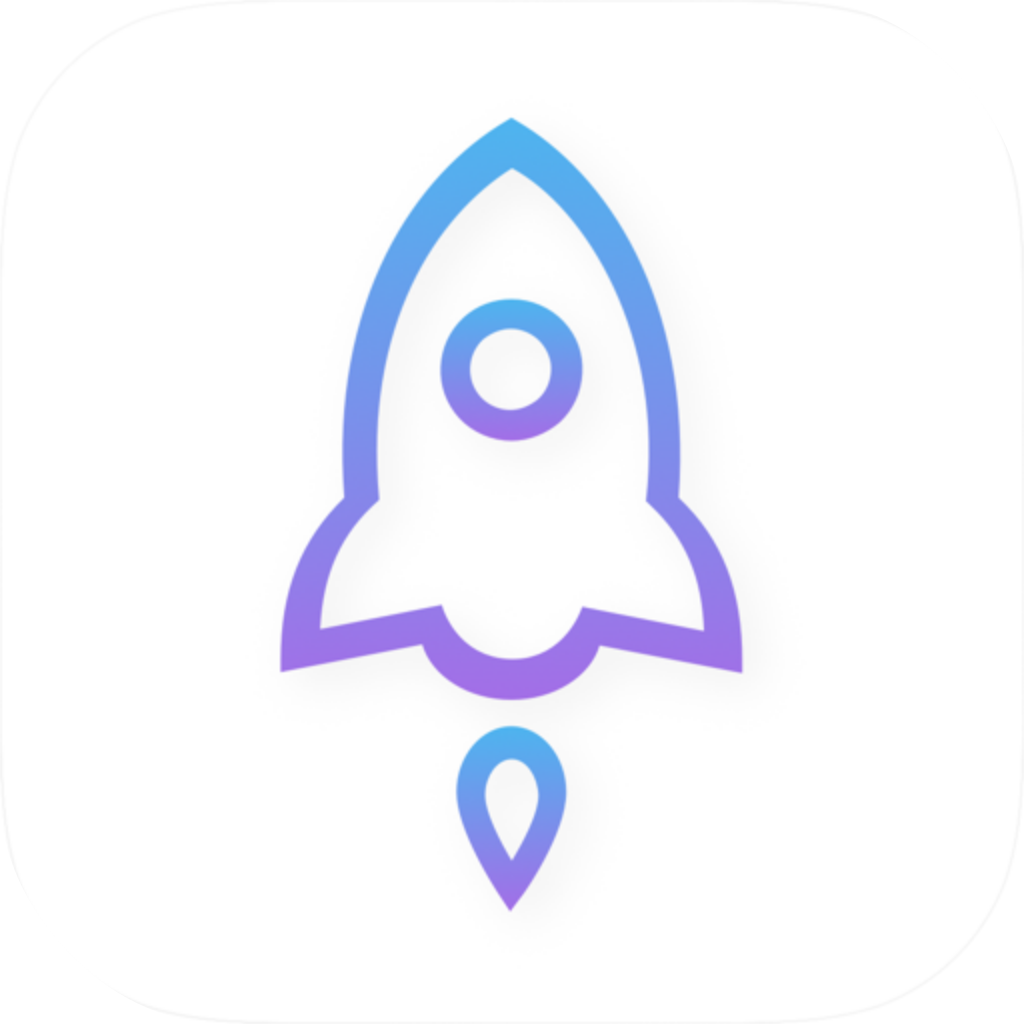
Compare it with the official icon below: a rocket outlined in blue and purple on a white background. The icon is a secondary clue. Check it alongside the developer information—don't decide based on a rocket-like design alone.
-
Check the product link
Use the product page's share option to copy the link, then check that its product number is id932747118. Once it matches, review the current price, compatibility, and purchase details before confirming payment.
Copy the product link to check its product number; you don't need to submit the link to any other website. A shared link may include extra parameters. Check the product number itself, not the parameters that follow it. If you can't verify the product page, pause the purchase and reopen it from our Get the app page.
3. Where to find the app ID—and what it isn't
The app ID is the number in the App Store product link that identifies the app. It is not the name shown on your Home Screen or the version number displayed after installation. Here is the product page linked from this site. The part to check is id932747118; the spelling of the name in the link isn't a reliable way to verify the app.
https://apps.apple.com/us/app/shadowrocket/id932747118| Check | What to verify | How to check |
|---|---|---|
| Developer | Shadow Launch Technology Limited | Check the full developer or Seller information on the product page |
| Official icon | White background with a blue-and-purple outlined rocket | Compare it with the official icon shown here as a secondary identification check |
| App ID | 932747118 | Look for id932747118 in the product's share link |
| Price and compatibility | Refer to the App Store listing | After verifying the app, check whether it suits your device and account |
If any details don't match, pause the purchase
If either the developer or app ID doesn't match, don't confirm the purchase. Return to the Get the app page and reopen the product listing. Search ranking, a similar icon, or a similar price can't make up for missing verification.
If you've bought the app before, check the same product page again. A cloud, Open, or price button reflects the current App Store status; it doesn't, by itself, show which account made the original purchase. If the page doesn't match what you expect, check your current App Store account and purchase history before paying again.
4. After verifying the app, distinguish the purchase from connection setup
Shadowrocket is a paid client sold as a one-time purchase, primarily for iPhone and iPad. Compatibility with Mac, Apple TV, and Apple Vision, along with system requirements and purchase eligibility, is determined by the App Store listing. Buying the client does not include a service plan. This guide assumes you already have a provider; get your subscription link from them.
Buying the app gives you the right to use it; it doesn't confirm that a server can connect. In the app, Home shows servers and connection status, Config manages configurations, and Settings contains app settings. Before troubleshooting a connection, check the current selection under Home → Global Routing. These options affect how traffic is handled; they don't verify the app's identity.
Config
RecommendedConnection behavior follows the rules in the selected configuration. Before use, check the selected configuration in Config and understand its rules and final policy. Don't assume every configuration sends traffic to the same destination by default.
Best for: everyday use with a verified configuration and rule-based routing
Proxy
Routes traffic through the selected server or policy as a proxy. This can help narrow down rule-related issues, but server settings and network conditions also affect the connection.
Best for: temporarily testing a proxy connection and separating rule issues from server issues
Direct
Connects directly, without routing traffic through a proxy. If behavior changes after selecting this option, first check the routing choice; it doesn't tell you whether you bought the correct app.
Best for: checking direct access on your current network
Global Routing may also use Scene to handle traffic according to the configured scenario. Scene is not simply another name for Config or Proxy. When getting started, there's no need to change several settings at once. After verifying the app, follow a tutorial to import your existing subscription and select a server, then run Connectivity Test in Home. This keeps purchase questions separate from connection issues.
5. Common questions about searching, reinstalling, and first launch
Can't find it by searching for a nickname. Has the name changed?
Try searching for the full name, Shadowrocket, then open the specified product page from our Get the app page. Search results depend on current App Store availability; one unsuccessful search doesn't mean the app has been renamed. If the product page isn't available, check your account's region and availability details using the App Store's current guidance. Don't choose a similar-sounding app instead.
I bought it before. Why am I seeing a price again?
First check that you're using the same App Store account that made the original purchase, then review your purchase history or purchased items. Also confirm that the current product link contains id932747118. Follow the App Store listing for eligibility and the available redownload options. Don't confirm payment again until you've checked these details.
The list is empty after opening the app. Did I buy the wrong one?
An empty list doesn't mean you bought the wrong app. First verify the developer and product link. If you already have a subscription, go to Home, tap “+” in the top-right corner, then choose Type → Subscribe. Enter the link from your provider and save it. Don't post subscription credentials in public comments.
The icon matches, but it won't connect. What should I check?
A similar icon isn't enough to verify the app. Once you've confirmed the developer and app ID, check that a server is selected in Home, the connection switch is on, and run Connectivity Test. If you're troubleshooting automatic connection behavior, check Settings → On Demand. Repeatedly buying the app won't resolve a connection issue.
6. Run through the full checklist before paying
Check app identity, purchase conditions, and connection setup separately to avoid mistakes. Verify app identity using the fixed details; check purchase conditions on the current App Store page; and test connection setup in the app using your own server details. Each check serves a different purpose, and they are not interchangeable.
- Identity: The app is named Shadowrocket, the developer is Shadow Launch Technology Limited, the icon matches the official icon, and the product number is 932747118.
- Purchase: Check the current App Store account, listed price, and device compatibility. Refer to the App Store listing for system requirements, purchase eligibility, and redownload conditions.
- Use: Get your subscription link from your provider. After importing it, check the selected server, Global Routing, and Connectivity Test. Buying the client does not mean a connection is already configured.
- Privacy: When reporting an issue to your provider, share only the details needed to explain the problem. Remove account details, subscription links, and access credentials before sharing diagnostic information.
Make your final check on the App Store product details and payment screens. If any app identity detail is unclear, return to the verification entry point. If the identity checks out but the connection doesn't work, follow the troubleshooting steps in the guide; there's no need to buy the app again.